Home Of Technology
  • Home
  • About
  • Contact
  • DMCA/PRIVACY
  • Home
  • Mobile
    • Android
    • iOS
    • BLACKBERRY
    • NOKIA
    • WINDOWS PHONE
  • PC tutorials/apps
  • Browsing Tips
  • ONLINE BANKING
  • TECH NEWS

Tuesday, 28 February 2017

The New Face of Nokia 3310 With Back Camera

 Unknown     12:03:00     NOKIA     No comments   

This is the new face of the revive Nokia 3310 unveiled yesterday in Barcelona by Nokia and HMD Global. The feature phone comes with a 2.4-inch QVGA display with a curved and polarized layer on top, along with a full QWERTY keyboard below,  measures only 115.6 x 51 x 12.8 mm and it’s made out of plastic retaining most of its predecessor’s rounded shape and silhouette.
 
The new Nokia 3310 is equipped with 16GB of internal storage, along with microSD slot compatible with microSD cards up to 32GB of memory. It runs on Series 30+ OS and comes with Opera browser preinstalled for easy web browsing with GSM speeds.

 It supports only GSM 900/1800 MHz networks and lacks WiFi! On the other hand  it comes with Bluetooth 3.0 compatibility, FM Radio, 3,5mm audio jack, Media Player, the awesome Snake game and an impressive 1200mAh battery that can offer up to 31 days of stand-by, 22 hours of talking and 39 hours of FM radio fun!
 
Fortunately enough, it packs  a 2MP camera at the back for basic photo shooting  and for the price, it goes for just N15,680 (49€).

This is the resurrection of Nokia 3310 that came back from the dead. Will you get a copy for yourself?


Read More
  • Share This:  
  •  Facebook
  •  Twitter
  •  Google+
  •  Stumble
  •  Digg

Etisalat Introduced New Cheap Night Plan N50 for 250MB

 Unknown     11:52:00     AFFORDABLE DATA PLANS     No comments   

Data is life to every smartphone that I’m perfectly aware… but when it comes to choosing between fast internet connections, I’ve my preferred network.

Etisalat seems to have been in the basketball court for a very long time not knowing that all the players have already left the court to those who want to practice. You’ll remember that Airtel already offer you N25 for 500MB while MTN offers the same N25 for 500MB for night crawlers and heavy downloaders. But Etisalat on the other hand lately realized that subscribers need a cheaper night plan hence decided to launch their own package.


The new Etisalat night plan cost N50 for 250MB and is available for Easycliq tariff plan. The night plan works on all smartphones, PC and Tablets respectively and it’s only usable between 12:00AM to 5:00AM.

How Can I Activate Etisalat 250MB For N50 Night Plan?

1. Migrate to Easycliq tariff plan by dialing *244*1#
2. Make sure you have minimum airtime balance of N50
3. Dial *229*10*10# to activate 250MB for N50 (12:00am- 5:00am)

Why can’t they just make it N50 for 2GB night plan?

Read More
  • Share This:  
  •  Facebook
  •  Twitter
  •  Google+
  •  Stumble
  •  Digg

Gionee Recently Unveiled New A1 devices with 20MP Selfie Camera

 Unknown     11:44:00     ANDROID     No comments   

Gionee just unveiled two monstrous new "A" line devices. The Gionee A1 and A1 Plus both come with big batteries and a focus of selfies and audio quality.

Both phones focus on providing a great selfie experience (both phones have flash on the front as well as back) along with large battery life. They both feature fingerprint sensors and will both run Android 7.0 Nougat out of the box.


 For the spec, The Gionee A1 Plus comes with:
·         Body: 166.4 x 83.3 x 9.1mm; 226g; Gray, Mocha, Gold
·         Screen: 6-inch FHD IPS LCD
·         Chipset: Mediatek MT6757T Helio P25; Octa-core (4x2.5 GHz Cortex-A53 & 4x1.4 GHz Cortex-A53); Mali-T880MP2
·         Camera: Dual 13 MP + 5 MP, f/2.0; Flash
·         Selfie: 20 MP, f/2.0; Flash
·         Memory: 4GB RAM; 64GB on-board storage, microSD slot
·         Battery: 4,550 mAh; Ultrafast Charge
·         OS: Android 7 Nougat


  On the other hand, Gionee A1, comes with:
·         Body: 154.5 x 76.5 x 8.5mm; 182g; Gray, Black, Gold
·         Screen: 5.5-inch FHD AMOLED
·         Chipset: Mediatek MT6755 Helio P10; Octa-core (4x2.0 GHz Cortex-A53 & 4x1.0 GHz Cortex-A53); Mali-T860MP2
·         Camera: 13MP, f/2.0; Flash
·         Selfie: 16MP, f/2.0; Flash
·         Memory: 4GB RAM; 64GB on-board storage, microSD slot
·         Battery: 4,010 mAh; Ultrafast Charge
·         OS: Android 7 Nougat

For the pricing, A1 is expected to go for EUR 349 and EUR 499 for the Plus.

Read More
  • Share This:  
  •  Facebook
  •  Twitter
  •  Google+
  •  Stumble
  •  Digg

Flobyt Free Wifi Service Launched in Lagos

 Unknown     11:32:00     AFFORDABLE DATA PLANS     No comments   


It will be a pain in the ass if you are reading this but you are not in Lagos. Flobyt free Wifi was recently launched last week by Don Jazzy (Mavin Record CEO) and Delete Odufuye! Flobyt is a free wi-fi service recently installed across public places such as eateries, parks, taxis, buses, restaurants, cafés and many more. 


According to the co-founder, Flobyt is 100% free for the users and our partner locations, all you have to do is walk in and log in. In fact, our working slogan is ‘Don’t use your data, use ours.’
No username required, no password required... just login and download use it the way you like.
Flobyt is absolutely free for use… no payment required. In order words, you can simply turn off your data and use this free wifi services provided by Flobyt in Lagos when you are around these locations below;


 FLOBYT LOCATIONS
·         RoadStar Burger, Lekki.
·         Bar Enclave, Ilupeju
·         Food House, Ikosi
·         White House, Yaba
·         Lounge 9a, Anthony
·         Massimo Bar, Ikeja
·         Grace’s Cakes, Ogba
·         Jazzment Salon, Lekki
·         KayzPlace Barbershop, Lekki
·         Amala Express, Lekki

The only downside of this flobyt free wifi is that the more people discover this, the more they’ll abuse the use because it is free. Meanwhile, I don’t trust anything free… it has indirect consequences.

Has anyone try it in Lagos?
Read More
  • Share This:  
  •  Facebook
  •  Twitter
  •  Google+
  •  Stumble
  •  Digg

Thursday, 23 February 2017

How to Root Android without Computer (APK ROOT without PC)

 Unknown     07:52:00     ANDROID     No comments   

Kingo Android Root has launched its KingoRoot apk for Android, which provides a universal one-click Android root solution for Android users. It is easy to use and saves the trouble to connect to PC via USB cable.
Before jumping into the rooting process, please make sure you get everything right beforehand.
  • Device powered on.
  • At least 50% battery level.
  • Internet connection necessary (Wi-Fi network suggested).
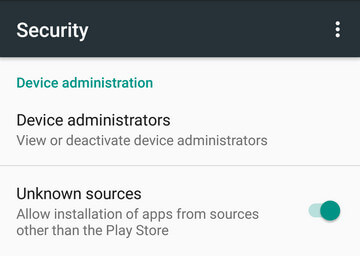
  • Allow installation of apps from unknown sources. Settings > Security > Unknown Sources        

Root Android via KingoRoot APK Without PC Step by Step


Step 1: Free download KingoRoot.apk.

 
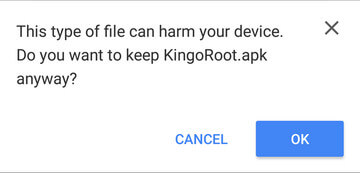
The download will be automatically started. If Chrome has warned you about KingoRoot.apk, click "OK" to proceed.
KingoRoot Apk Download, the best one-click root apk for free
If you are using PC to view this tutorial, you have three choices.
  • You can use the PC Version of KingoRoot Android (PC Version), which has a higher success rate due to technical reasons.
  • How to root any android device and version with KingoRoot?    
  • You can visit APK Root for Android on your mobile and download the file on your device.Kingo Root Apk Website, the best one click android root apk tool for free.        
  • You can download KingoRoot.apk on your PC, transfer it to your Android device and then find the file via File Explorer and install it from APK section.

Step 2: Install KingoRoot.apk on your device.

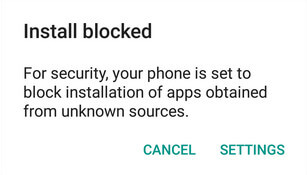
If you didn't check "Unknown Sources" in Settings > Security, then during installation, you will get a prompt "Install blocked", stating that "For security, your phone is set to block installation of apps obtained from unknown sources".
Root any Android device with KingoRoot, the best one-click Android apk root tool.
Just follow phone instructions and install Kingo Root on your device and allow installs from "Unknown Sources".
Root any Android device with KingoRoot, the best one-click Android apk root tool.

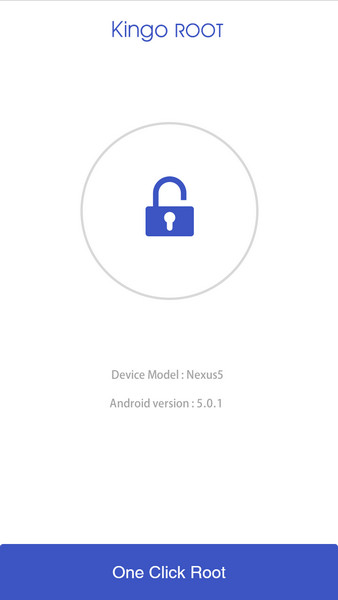
Step 3: Launch "Kingo ROOT" app and start rooting.

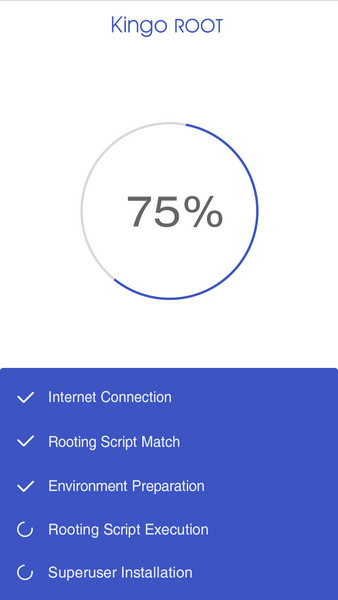
Kingo Root is very user-friendly and easy to use. Click "One Click Root" to start the rooting process.
Kingo Root Apk Main Interface

Step 4: Waiting for a few seconds till the result screen appear.

Kingo Root Apk Rooting

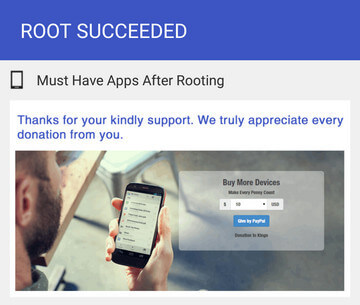
Step 5: Succeeded or Failed.

It is highly recommended that you try several times when rooting with KingoRoot apk version. We have several rooting methods integrated in apk root, however, it will only run one at a time.
Kingo Root Apk Root Succeed


Read More
  • Share This:  
  •  Facebook
  •  Twitter
  •  Google+
  •  Stumble
  •  Digg

The Revived Nokia 3310 Won't be an Android Phone

 Unknown     07:38:00     NOKIA     No comments   

The internet was agog last week when the news of the comeback of Nokia 3310 went viral even before HMD thought to re-release the Nokia 3310, there have been multiple renders of a new Nokia 3310 phone running android. But alas! The revived  Nokia 3310 won’t be an Android phone but will remain a feature phone.

Here are the few details we know so far
>>The new Nokia 3310 will remain a feature phone, and not a smartphone.
>>Same Design:The design of the phone will not look much different from back when it was released in year 2000. The only changes will be in the weight and thickness.

>>The physical key position will remain the same but the key size will be adjusted.
>>Will launch a multi-color fuselage style , including red, green and yellow and so on.
>>Larger Color Display: The screen will become larger and will be upgraded to a color screen .

The question is how much will you be willing to buy the revived version of Nokia 3310 knowing fully well that its not an Android phone but a feature phone?
Read More
  • Share This:  
  •  Facebook
  •  Twitter
  •  Google+
  •  Stumble
  •  Digg

Tuesday, 21 February 2017

Android Antivirus apps are useless - here’s what to do instead

 Unknown     01:45:00     ANDROID     No comments   


It seems like you can’t go a week without one security firm or another producing a statistic illustrating just how much Android malware there is in the wilds of the internet. More often than not, these reports come with a few reminders that the company’s own security suite can protect you from these nasty bits of code, which is true some of the time. However, Android is by its very nature more secure than a desktop computer, so maybe you don’t need these security apps. You’ve probably already got what you need.


The scare tactics

The most recent Android malware report comes from Check Point, which says nearly one billion android devices have critical vulnerabilities in the underlying Linux kernel. Shocking and upsetting, right? It’s a legitimate security issue, but the reporting is, as usual, overly breathless and dramatic. The PR certainly makes it seem like your phone is ripe for infection, but the real situation is much more nuanced.

The latest QuadRooter scare is actually a set of four issues known as CVE-2016-2059, CVE-2016-2504, CVE-2016-2503, and CVE-2016-5340. They are rooted in the Linux system code provided by Qualcomm to partners like Google. The way this is presented by many mainstream reports, you’d think Google is in panic mode and rushing out patches. In fact, the Android security model is much more mature now. Several of
these vulnerabilities are already patched in the Android Open Source Project (AOSP), and the others will be soon. As OEMs build new updates, they’ll include updated patch levels, which you can see in your software info.


We’ve all been programmed by PC malware, which can sneak onto your system simply because you visited the wrong website with a vulnerable browser. These “drive-by downloads” aren’t feasible on Android without a pre-existing infection. On Android, you have to physically tap on a notification to install an APK downloaded from a source outside the Play Store. Even then there are security settings that need to be manually bypassed.


What if a QuadRooter app were to make it into the Play Store before then? Google’s platform has the ability to scan for known malware when it’s uploaded. There’s also a human review process in place for anything that looks even a little bit questionable. Google just started doing this a few months ago, mainly as a way to keep copycat apps and obvious scams from slipping through the cracks.

The solution pushed by AV companies is to install a security suite that manually scans every app, monitors your Web traffic, and so on. These apps tend to be a drain on resources and are generally annoying with plentiful notifications and pop ups. You probably don’t need to install Lookout, AVG, Symantec/Norton, or any of the other AV apps on Android. Instead, there are some completely reasonable steps you can take that won’t drag down your phone. For example, your phone already has antivirus protection built-in.

What you should do to stay safe
Your first line of defense is to simply not mess around with Android’s default  security Settings. To get Google certification, each and every phone and tablet comes with “Unknown sources” disabled in the security settings. If you want to sideload an APK downloaded from outside Google Play, all you need to do is check that box. Leaving this disabled keeps you safe from virtually all Android malware, because there’s almost none of it in the Play Store.

There are legitimate reasons to allow unknown sources, though. For example,

Amazon’s Appstore client sideloads the apps and games you buy, and many reputable sites re-host official app updates that are rolling out in stages so you don’t have to wait your turn. If you do take advantage of this feature, the first time you do so a box will pop up asking you to allow Google to scan for malicious activity. This is known as Verify Apps and it’s part of Google Play Services on virtually all official Android phones. Google has confirmed that QuadRooter is detected and disabled by Verify Apps. So, even if your device is lagging on security updates, you shouldn’t have to worry.


Users have been rooting their Android phones ever since the first handsets hit the market, but it’s less common these days. The platform offers many of the features people used to root in order to acquire. Using rooted Android is basically like running a computer in administrator mode. While it’s possible to run a rooted phone safely, it’s definitely a security risk. Some exploits and malware needs root access to function, and otherwise it’s harmless even if you do somehow install it. If you don’t have a good reason to root your phone or tablet, just don’t open yourself up to that possibility.

Android apps also exist that might not be “malware” per se, but you might not want them on your phone because they snoop through your data. Most people don’t read the permissions for the apps they install, but the Play Store does make all that information available. As of Android 6.0, apps need to request access to sensitive permissions like access to your contacts, local storage, microphone, camera, and location tracking. If an app has reason to access these modules (like a social networking app), you’re probably fine. If, however, a flashlight app is asking for your contact list, you might want to think again. The system settings include the tools to manually revoke permissions for any app.
It really just takes a tiny bit of common sense to avoid Android malware. If you do nothing else, keeping your downloads limited to the Play Store and other 100% trustworthy sources will keep you safe from almost all threats out there. The antivirus apps are at best redundant and at worst a detriment to your system performance.


Read More
  • Share This:  
  •  Facebook
  •  Twitter
  •  Google+
  •  Stumble
  •  Digg

Intel Core i5 vs. Core i7: Which Processor Should You Buy?

 Unknown     01:00:00     COMPUTERS     No comments   


Whether you’re building your next PC or shopping for a new computer online, one of the questions that comes up from time to time is whether the Intel Core i5 or Core i7 is a better bargain. The short answer, “It depends,” isn’t all that helpful, so we’ve broken the data out in more detail and for both mobile and desktop processors. Here’s what you need to know.

Desktop Core i5 vs. Desktop Core i7

Intel’s Skylake (6th generation) differentiation and feature sets haven’t really changed much since Haswell (4th generation). The Core i7 features quad-cores with Hyper-Threading enabled and Intel’s HD Graphics 530 solution. The Core i5 family offers quad-cores without Hyper-Threading, and either HD Graphics 530 or 510 GPUs. Most people, including gamers, should be fine with a Core i5 desktop CPU. Core i7 chips tend to help more with engineering, video editing, audio post-production, and other tasks that require as many processor threads as possible.
For graphics, the HD Graphics 510 has 12 execution units (EUs), while the 530 has 24. Avoid the 510 in any case where you intend to do anything substantial with the GPU. But the long-standing rule of thumb remains true: No Intel chip is particularly strong in the graphics department, apart from the EDRAM-equipped Iris Pro variants (none of which exist in socketed consumer hardware). Enthusiast gamers should always opt for a discrete GPU.


The Core i7-4790K is still the highest-clocked CPU Intel has released. Again, this is a 4th-gen product, so the motherboards are somewhat older. 

One significant difference between the desktop and mobile markets (the latter of which we’ll get to below) is how Intel positions Hyper-Threading. Almost all of  Intel’s desktop Core i5 chips across the last six desktop product generations are all quad-cores without Hyper-Threading, while its Core i7 family consists of quad-cores with Hyper-Threading. (Intel’s Core i5-4570T is the single exception to this — it’s a dual-core + Hyper-Threading chip.) Older Core i5 / Core i7 chips top out at 32GB of RAM, but Skylake raises this to 64GB for both types of processor.

What about desktop PC performance?

To compare performance between the Core i5 and Core i7 families, I turned to Anandtech’s excellent CPU Bench database. While AT doesn’t have records on every chip released by Intel or AMD, they’ve got a solid selection of comparable parts. I opted to check the Core i5-4690K versus the Core i7-4770K. The 4770K has Hyper-Threading, a base frequency of 3.5GHz, can Turbo up to 3.9GHz, and has 8MB of L3 cache. The Core i5-4690K has the same clock speed, but no Hyper-Threading and just 6MB of L3 cache. That’s about as perfect a match-up as you can ask for.
The graph below was generated by comparing Core i5 and Core i7 in each and every benchmark and taking the geometric mean of the results. This diminishes the impact of outliers, though in this case, the arithmetic and geometric means are quite close to each other. I’ve split the data into three sections — general compute, gaming performance with 1x GTX 770, and gaming performance with the GTX 770 in SLI.
CPU-Perf.
Aggregate performance between the Core i5-4690K and Core i7-4770K. Data from Anandtech CPU bench
There are some differences in the data sets that we need to discuss. The aggregate General Purpose ratio doesn’t reflect the impact Hyper-Threading can have on various applications. There are a number of applications where Hyper-Threading makes no difference, a handful where it decreases performance (though never by more than 8 percent) and a several benchmarks that show gains of 10-30%. If we set a 3% threshold for a tying score, Hyper-Threading gives the Core i7 a win in 21 out of 36 tests. It ties the Core i5 in 14 tests, and loses to it outright in just a single benchmark (x264).
In workstation and consumer CPU workloads, Hyper-Threading sometimes helps a lot, sometimes doesn’t help much, but almost never hurts. Gaming, however, is a different animal. In gaming, Hyper-Threading never offers a single performance boost, while it impacted BioShock Infinite’s minimum FPS by 11% (meaning the Core i5 outscored the i7). The net effect is a 2% performance decrease for Hyper-Threading. In SLI gaming, we see a similar pattern, though this time it’s different games that take performance hits. The minimum frame rate for Sleeping Dogs was 10% faster on the Core i5 (56 vs. 61.8) and 5% faster in BF4 (86.4 vs. 82.9).
What this means, in aggregate, is that while Hyper-Threading probably doesn’t hurt gaming in most titles, you can’t depend on it to offer a significant performance boost, either. While the above comparison uses older data from Haswell, there’s nothing about Skylake or Broadwell that changed the Core i5 / i7 comparison point. You can assume that the same metrics hold true for these chips as well — namely, that the Core i5 offers an equivalent level of performance.

What about AMD?

AMD isn’t a formal part of this article, but since I know people will ask, I took a look at how the FX-9590 compares against the Core i5-4690K. The news is not particularly good. There are a few well-threaded benchmarks where AMD can shine, including WinRAR, x265 encoding, multi-threaded Cinebench (both 11.5 and R15) and 7zip. The FX-9590 is utterly incapable of matching the 4690K’s single-threaded performance, which means AMD loses every test that can’t scale to eight cores or is single-threaded to start with.
The gap between AMD and Intel in game benchmarks is much smaller than in general CPU performance. AMD’s FX-8350 and FX-9590 are capable of pushing perfectly acceptable frame rates. But the FX-9590 never outclasses the Core i5-4690K in any test. If you’re building a gaming box and you want to go AMD, you absolutely can — but pound for pound and watt for watt, the Core i5 wins this competition.

Mobile Core i5 vs. Mobile Core i7  (Skylake, Kaby Lake)

Mobile users now have three distinct choices to make, which clouds the issue a bit. There are previous-generation Core M chips as well as new Core i7 and i5 processors. The Core M chips are now limited to the m3 family — Intel has taken what used to be a distinct brand and folded it into the Core i7 and Core i5 families instead. This creates situations like the one shown below.
Corei7-Comparison
These two chips look similar, with the same cache, almost the same clock speed, and similar GPUs — but they have different operating TDPs and hence offer different user experiences. Exactly how different isn’t something we can speak to without test hardware, but past systems showed marked variation depending on OEM design and thermal limits. To date, Core M hasn’t done particularly well — OEMs often saddled the processors with aggressive high-resolution displays and extremely thin chassis, leading to mediocre battery life.
The Core i5 is in a similar situation:
CoreM-Comparison
If you’re looking at the Core M-branded Core i5, we strongly recommend doing your homework and checking reviews of specific systems. Core M systems can deliver better battery life than their i5/i7 counterparts, but this will depend on the specifics of the manufacturer. Remember, high-resolution screens and ultra-thin systems with limited battery life will cost you just as much in power savings as you can get with a lower-TDP CPU — possibly more these days, since high-end chips account for a decreasing amount of power consumption.
The other major difference we want to discuss is the newfound gap between Core i7 and i5 core counts on mobile. Prior to Skylake (6th gen), almost all Intel chips on mobile were dual-core below the Core i7 level. Now, there’s a group of Core i5 mobile parts that offer quad cores without Hyper-Threading support, as shown below:
Intel-Core-i5-Mobile
The difference between these three cores is that one of them supports Intel’s Iris Pro Graphics, while the other two are Intel HD Graphics-only. The Iris Pro 580 is Intel’s only EDRAM-equipped 128MB  Core i5. If you want a mobile processor with top-end graphics and a quad-core CPU, this is the Core i5 you want to purchase.
Outside of these three cores, the general rule does still follow. Most mobile Core i5 and all Core i3 processors are dual-core with Hyper-Threading. Here are the features that separate mobile Core i5 and Core i7 processors:
More cores: Many of Intel’s Core i7 processors are quad-core chips with Hyper-Threading enabled. This isn’t universal, however, and the company does offer a few dual-core + Hyper-Threading SKUs.
Higher clocks: Intel’s dual-core mobile Core i7 chips typically have higher clock speeds than their Core i5 counterparts, even at the same TDP.
More cache: Core i7 chips carry either 6MB or 4MB of cache. Core i5 chips run the gamut here. Older chips (pre-Broadwell) often carry 3MB, while Skylake and Kaby Lake chips are sometimes 4-6MB. The extra cache has only a small impact on performance.
More addressable memory: Many older mobile Core i7 and i5 processors are limited to 16GB of memory, but there are Skylake (6th-gen) chips that support 32GB and even 64GB on some late Core i5 / i7 models. 16GB of RAM is fine for the vast majority of users. But if you think you might need more, check what your CPU is capable of at Intel’s database.
How much performance you get out of a mobile Core i5 versus a Core i7 will depend a great deal on your laptop’s cooling solution and whether the chip can handle its own heat output. We’ve previously discussed how Intel gave OEMs more freedom to define their own TDP targets and skin temperatures. But this creates scenarios in which buying a faster Core M can actually result in worse performance, as the chip hits its thermal trip point and down-throttles to keep cool.
Intel's highest-end Iris Pro graphics are available in both Core i5 and Core i7 mobile SKUs
Intel’s highest-end Iris Pro graphics are available in both Core i5 and Core i7 mobile SKUs
We can’t point to specific instances where this has tilted performance between Core i5 and Core i7 chips, but it’s likely to create at least a little “slosh” between the two core families. Generally speaking, if you truly want to emphasize low power, pick the CPU that has lower base and turbo clocks. Intel historically defined TDP as “The CPU’s average power consumption when running typical workloads over a period of time.” A chip with more headroom is a chip that’ll hit its throttle point faster.

Which chip should you buy?

Right now at Newegg, Core i5 chips are running as low as $185 for the Haswell-based Core i5-4430, while the cheapest Skylake is $189 for the Core i5-6400. The Haswell is the better buy, with a 3GHz base clock, but the platform is older and you won’t be able to upgrade to a faster chip at a later date — assuming anyone still bothers. It’s a little surprising to see how much Haswell hardware is still in-channel. It’s been a year since Skylake launched and Intel normally turns its stock over fairly quickly.
The cheapest Core i7 chip, in contrast, is $295 at Newegg for the Core i7-4770S, and there’s not much to recommend the Core i7 over the Core i5 family if you want to play games or do basic desktop work. The Core i7 can be faster, but many consumer applications top out around four threads. Many have hoped that AMD’s Zen will reinvigorate this market, but until that chip formally launches we’re stuck with the product roadmap Intel offers, and the Core i5 is the better deal for most people.
Over a year ago, I wrote that DirectX 12 could offer the Core i7 a chance to prove itself, but we have yet to see that happen in the titles that have shipped to date. DirectX 11 and DX9 will remain important APIs for years to come, which means we have to wait and see which titles offer DX12 support and how it changes the Core i5-versus-Core i7 comparison.
It’s harder to make this call on mobile. Poor cooling will cripple any laptop, and some of the boutique laptops on the market are sold with CPUs that they can’t possibly keep cool. I tend to favor the Core i5 over the Core i7 for mobile gaming because it helps preserve battery life and still offers good overall performance. CPU choice is just one element of a laptop — just be aware that higher-end CPUs may not deliver much of their expected performance if the chassis isn’t well designed for the chip it’s carrying.
If you’re considering a laptop with a Kaby Lake or Skylake chip, as opposed to something older, I’d tend to go for the platform with the newest components and lower-resolution display if you want to maximize battery life, and the strongest GPU if you want to maximize gaming performance. The gap between Haswell and Skylake is irrelevant as far as gaming is concerned, while the difference between a GTX 970M and 960M is much larger.
Read More
  • Share This:  
  •  Facebook
  •  Twitter
  •  Google+
  •  Stumble
  •  Digg

WhatsApp Introduced New Feature- "WhatsApp Status" Like a Feature on Snapchat

 Unknown     00:37:00     TECHNOLOGY NEWS     No comments   

WhatsApp is by all means waxing stronger by the day as one of the largest Instant messenger app in the world. Just like Instagram introduced the ‘feature stories’ copied from snapchat, today whatsapp has announced a new feature that let you express yourself using a short video, a feature inspired by snapchat.


The new feature "WhatsApp Status" will allow you to share photos, videos, and GIFs as your status(i.e. stories) which will auto-destruct in 24 hours. The feature was tested in November last year, and was pushed to beta testers last week. 

You will have the ability to control who sees your statuses. Starting with Netherlands and France, the feature will start rolling out for both iOS and Android today with other markets to follow.

I must say this is a really smart addition to WhatsApp helping you to alleviate boring status update all the time.

 
Read More
  • Share This:  
  •  Facebook
  •  Twitter
  •  Google+
  •  Stumble
  •  Digg

Monday, 20 February 2017

How To Fix a Blue Screen of Death

 Unknown     00:12:00     COMPUTERS     No comments   

A Complete Troubleshooting Guide for BSODs in Windows 10, 8, 7, Vista, & XP


A Blue Screen of Death, also called a STOP Error, will appear when an issue is so serious that Windows must stop completely.
A Blue Screen of Death is usually hardware or driver related. Most BSODs show a STOP code that can be used to help figure out the root cause of the Blue Screen of Death.
Did your PC restart after the BSOD? If the blue screen flashed and your computer rebooted automatically before you had time to read anything, see the tip at the bottom of the page.
Important: Below are general Blue Screen of Death troubleshooting steps. Please reference my List of Blue Screen Error Codes for individual STOP code troubleshooting steps. Come back here if I don't have a troubleshooting guide for your specific STOP code or if you have no idea what your STOP code is.
Note: Some of these steps may require you to start Windows in Safe Mode. If that's not possible then skip those steps.

Don't Want to Fix This Yourself?

If you're interested in fixing this BSOD problem yourself, continue with the troubleshooting in the next section.
Otherwise, see How Do I Get My Computer Fixed? for a full list of your support options, plus help with everything along the way like figuring out repair costs, getting your files off, choosing a repair service, and a whole lot more.

How To Fix a Blue Screen of Death

Time Required: It might take you several hours to fix a Blue Screen of Death, depending on the STOP Code.

Some steps are easy while others might be a little more complicated.
Applies To: Any version of Windows, including Windows 10, Windows 8, Windows 7, Windows Vista, and Windows XP.

  1. The most important Blue Screen of Death troubleshooting step you can take is to ask yourself what you just did.
    Did you just install a new program or a piece of hardware, update a driver, install an update, etc.? If so, there's a very good chance that the change you made caused the BSOD.

    Undo the change you made and test again for the STOP Error. Depending on what change you made, some solutions might include:
     
    • Startup using Last Known Good Configuration to undo recent registry and driver changes.
    • Use System Restore to undo recent system changes.
    • Roll Back device driver to version prior to your driver update

Check that there's enough free space left on the drive Windows is installed on. Blue Screens of Death and other serious issues, like data corruption, can occur if there's not enough free space on your primary partition used for the Windows operating system.
Note: Microsoft recommends that you maintain at least 100MB of free space but I regularly see problems with free space that low. I usually advise Windows users to keep at least 15% of a drive's capacity free at all times. 

2. Scan your computer for viruses. Some viruses can cause a Blue Screen of Death, especially ones that infect the master boot record (MBR) or boot sector.
Important: Make sure your virus scanning software is completely up to date and that it's configured to scan the MBR and boot sector
Tip: If you can't get far enough to run a virus scan from within Windows, use one of the programs I've highlighted in my Free Bootable Antivirus Tools list instead. 

3. Apply all available Windows service packs and other updates. Microsoft regularly releases patches and service packs for their operating systems that may contain fixes for the cause of your BSOD. 

4. Update drivers for your hardware. Most Blue Screens of Death are hardware or driver related so updated drivers could fix the cause of the STOP error. 

5. Check the System and Application logs in Event Viewer for errors or warnings that might provide more clues on the cause of the BSOD.

6. Return hardware settings to default in Device Manager. Unless you have a specific reason to do so, the system resources that an individual piece of hardware is configured to use in Device Manager should be set to default. Non-default hardware settings have been known to cause a Blue Screen of Death. 

7. Return BIOS settings to their default levels. An overclocked or misconfigured BIOS can cause all sorts of random issues, including BSODs.
Note: If you've made several customizations to your BIOS settings and don't wish to load the default ones then at least try returning clock speed, voltage settings, and BIOS memory options to their default settings and see if that fixes the STOP error. 

8. Make sure all internal cables, cards, and other components are installed and seated properly. Hardware that's not firmly in place can cause a Blue Screen of Death so try reseating the following and then test for the STOP message again:
    • Reseat all internal data and power cables
    • Reseat the memory modules
    • Reseat any expansion cards.            9. Perform diagnostic tests on all hardware you're able to test. It's highly likely that the root cause of any given Blue Screen of Death is a failing piece of hardware:
    • Test your system memory
    • Test your hard disk drive

If a test fails, replace the memory or replace the hard drive as soon as possible. 

10. Update your BIOS. In some situations, and outdated BIOS could cause a Blue Screen of Death due to certain incompatibilities. 

11. Start your PC with essential hardware only. A useful troubleshooting step in many situations, including BSOD issues, is to start your computer with the minimum hardware necessary to run the operating system. If your computer starts successfully it proves that one of the removed hardware devices was the cause of the STOP message.
Tip: Typically, the only necessary hardware for starting your PC through to the operating system includes the motherboard, CPU, RAM, primary hard drive, keyboard, video card, and monitor.

Find that hardware is the cause of your Blue Screen of Death?

Try one of these ideas:

  • Replace the hardware.
  • Update the hardware's firmware.
  • Make sure the hardware is on the Hardware Compatibility List.
  • Check with the manufacturer for support information.

Find that a software program is the cause of your Blue Screen of Death?

One of these things should help:

  • Reinstall the software.
  • Check for and install any available program updates.
  • Check with the developer for support information.
  • Try a competing program.

Is your PC restarting before you can read the STOP Code on the Blue Screen of Death?

Most Windows PCs are configured to reboot immediately after receiving a serious error like a BSOD.
You can prevent this reboot by disabling the automatic restart on system failure option.


Read More
  • Share This:  
  •  Facebook
  •  Twitter
  •  Google+
  •  Stumble
  •  Digg
Newer Posts Older Posts Home

Popular Posts

  • Call of Duty: Strike Team Android
    Game description:   Call of Duty: Strike Team : Call of Duty: Strike Team  - the USA was unexpectedly attack...
  • Stable Nougat 7.1.1 Rom For Infinix Note 3 Pro
    Hi everybody and users of Infinix Note 3 ace, here is something useful for all Infinix note 3 star users, its M.A.D Aosp in view of Android...
  • Completely Unlocked FIFA 14 v1.3.6 Mod and Data (No Root) Download, Install And Play
      EA Sport Android FIFA 14 has been the best Android football HD diversion so far because of its HD design, realness, disconnected elem...
  • Best 20 PPSSPP Games To Download & Enjoy On Your Android, Windows, iOS, BlackBerry 10 and Other Devices
      PPSSPP (an acronym for "PlayStation Portable Simulator Suitable for Playing Portably") is a free and open-source PSP emulat...
  • OS 10.3.2.2789 for all devices and Autoloaders
    OS and Radio links for SR 10.3.2.2514 (OS 10.3.2.2789 + Radio 10.3.2.2790) *  Operating Systems * QC8974: Blackberry Passport (Debric...

Blog Archive

  • ▼  2017 (43)
    • ►  October (4)
    • ►  August (6)
    • ►  April (2)
    • ►  March (17)
    • ▼  February (14)
      • The New Face of Nokia 3310 With Back Camera
      • Etisalat Introduced New Cheap Night Plan N50 for 2...
      • Gionee Recently Unveiled New A1 devices with 20MP ...
      • Flobyt Free Wifi Service Launched in Lagos
      • How to Root Android without Computer (APK ROOT wit...
      • The Revived Nokia 3310 Won't be an Android Phone
      • Android Antivirus apps are useless - here’s what t...
      • Intel Core i5 vs. Core i7: Which Processor Should ...
      • WhatsApp Introduced New Feature- "WhatsApp Status"...
      • How To Fix a Blue Screen of Death
      • Galaxy S8 clear case leaks in new photo
      • What to Expect From Nokia 3, 5 & Revived Nokia 3310
      • Recession- Telcom to Block WhatsApp, Skype & Faceb...
      • Samsung heir apparent arrested on bribery charges
  • ►  2016 (31)
    • ►  December (4)
    • ►  October (3)
    • ►  September (5)
    • ►  June (2)
    • ►  May (13)
    • ►  April (1)
    • ►  January (3)
  • ►  2015 (111)
    • ►  November (6)
    • ►  October (93)
    • ►  September (12)

Labels

  • AFFORDABLE DATA PLANS
  • ANDROID
  • BLACKBERRY
  • BROWSING TIPS
  • COMPUTERS
  • IOS
  • NOKIA
  • ONLINE BANKING
  • TECHNOLOGY NEWS
  • WINDOWS PHONE

Translate

Powered by Blogger.

Categories

ANDROID (61) TECHNOLOGY NEWS (26) AFFORDABLE DATA PLANS (24) COMPUTERS (24) IOS (22) BROWSING TIPS (13) NOKIA (9) BLACKBERRY (7) WINDOWS PHONE (4) ONLINE BANKING (2)

Copyright © Home Of Technology | Powered by Blogger
Design by Ememovic™